TA Documents Agent 2.x (current)
System Requirements
| Hardware | Value | Note |
|---|---|---|
| Memory | Min. 1 GB | Dedicated RAM for agent |
| Hard disk space | Min. 500 MB free | For installation of the application and logs |
| Processor | x86 (32-bit) or x64 (64-bit) | |
| Resolution | Min. 1024 x 768 |
| Operating system | Version |
|---|---|
| Windows 10.x | |
| Windows 11.x | |
| Windows Server 2019 | Standard Edition 64 Bit Datacenter 64 Bit |
| Windows Server 2022 | Standard Edition 64 Bit Datacenter 64 Bit |
Installation files
| Version | Download |
|---|---|
| v2.7.0 | TA Documents Agent v2.7.0 |
IP addresses and domains
If you or your organization uses restrictive firewall or proxy server settings, you or your network administrator may need to allow specific domains and IP address ranges to ensure that Triumph-Adler Cloud products and related services function as expected.
For detailed information, refer to: IP Addresses and Domains.
Navigation
Connection Tab
Access and Refresh tokens are required. These tokens can be created via Token Management. A token can include multiple permissions (for example, for both Classification and eInvoice subscriptions).
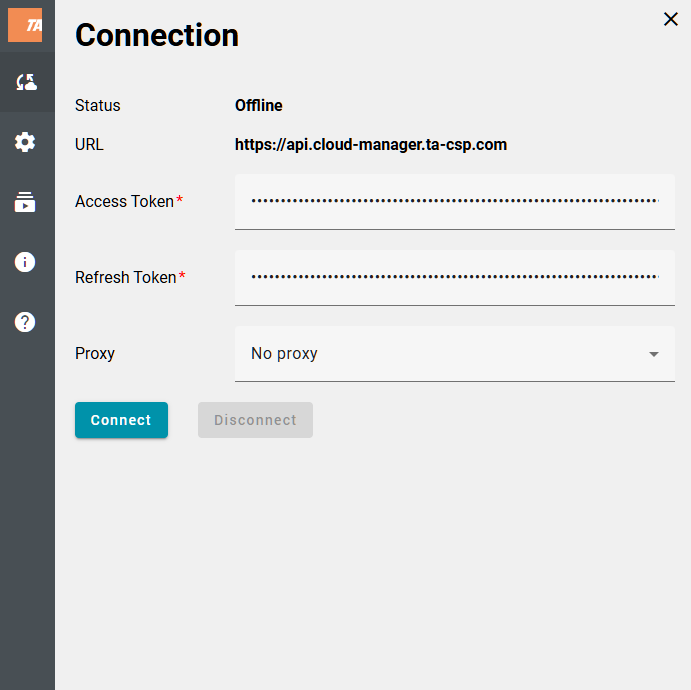
configuration without proxy
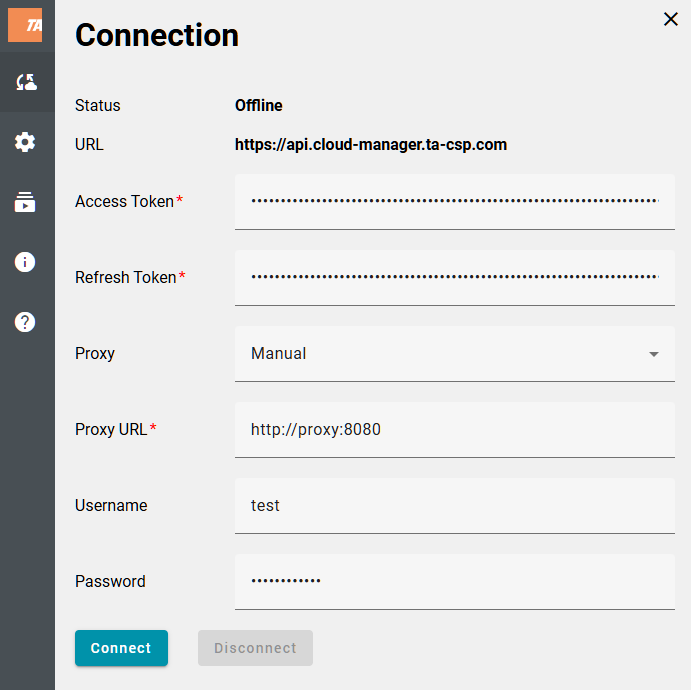
configuration with proxy
| Field | Description |
|---|---|
| Status |
|
| URL | URL of the linked environment (production or staging). For selection of the environment, see Command line parameters |
| Access token | Access token generated via the Cloud Manager. The token is valid for 15 minutes. |
| Refresh token | Refresh token generated via the Cloud Manager. The token is valid for 30 days. |
| Proxy | Proxy mode (“manual” or “use system proxy”) |
| Proxy URL | URL and port of the proxy server e.g. http://proxy:8080 |
| Proxy Username | Username for authentication with the proxy server (3 notations = “user@test.ag”, “test\user”, “user”) |
| Proxy Password | Password for authentication with the proxy server |
Configuration Tab
Folder Configuration
The Folder Configuration section contains two tabs. Use these tabs to define folders for the respective document types:
- Invoices – Specify the folder used to upload invoice and electronic invoice documents.
- Delivery Notes – Specify the folder used to upload delivery note documents. The following formats are currently supported:
| Invoices (TA Invoice Skill) | eInvoices (TA eInvoice Skill) | Delivery Notes (TA Delivery Note Skill) |
|---|---|---|
|
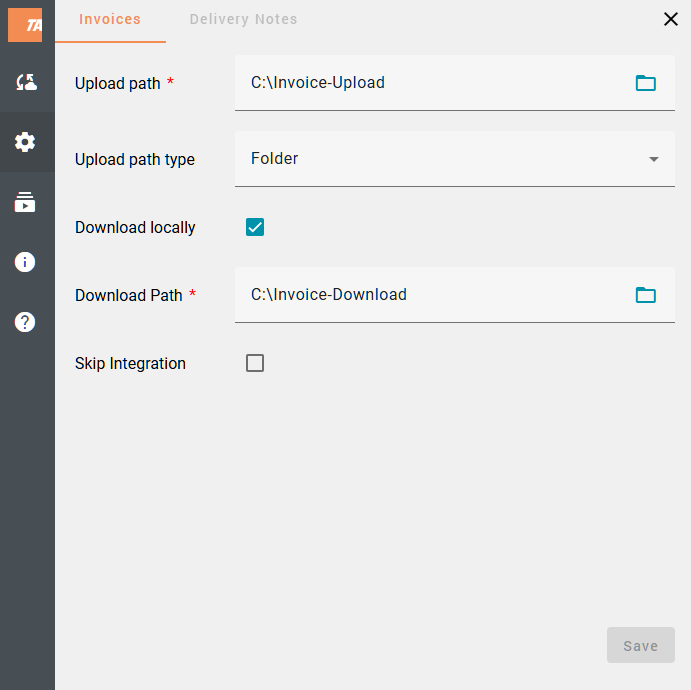
folder configuration
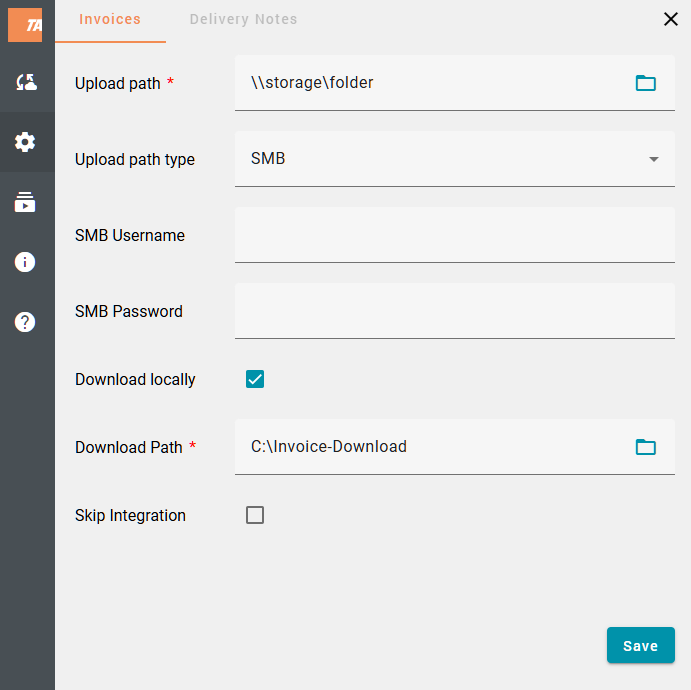
SMB configuration
Once the client is connected to the service, the configuration tabs (Invoices, Delivery Notes) are automatically displayed based on the active subscription.
| Field | Description |
|---|---|
| Upload path | Upload folder (documents are uploaded from this folder). A UNC path is supported. |
| Upload path type | Upload path type:
|
| SMB Username | Username for authentication with SMB |
| SMB Password | Password for authentication with SMB |
| Download locally | This option activates the download of classified/extracted documents (JSON and PDF file); for eInvoices an original document and generated PDF will be downloaded. |
| Download path | Download folder (classified/extracted documents are downloaded to this folder). A UNC path is supported. |
| Skip integrations | This option deactivates the transfer of classified/extracted documents to the “yuuvis RAD” service. |
Subscriptions Tab
The available subscriptions are determined by the token used to connect to the server. If the eInvoice and/or Classification subscriptions are not shown, generate a new token.
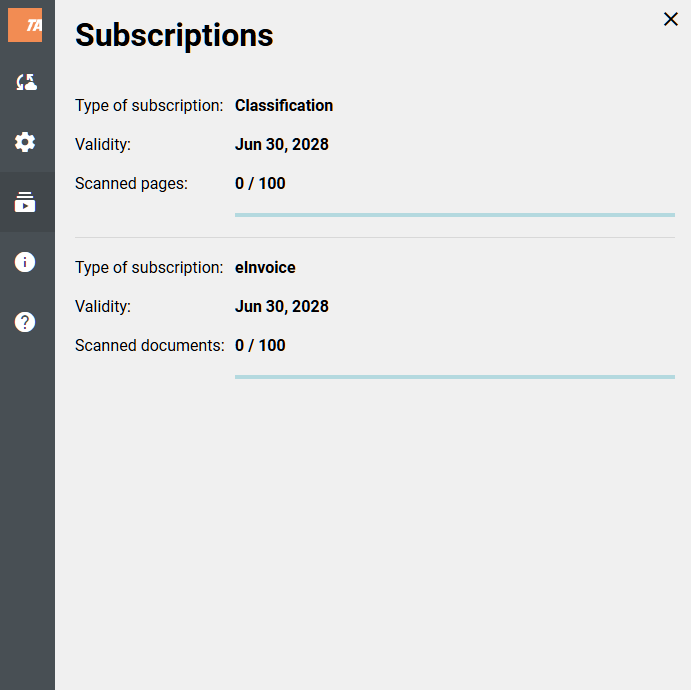
| Field | Description |
|---|---|
| Validity | Expiration date of the subscription. |
| Scanned pages | Total number of pages scanned in the current month. |
| Scanned documents | Total number of documents scanned in the current month. |
Info Tab
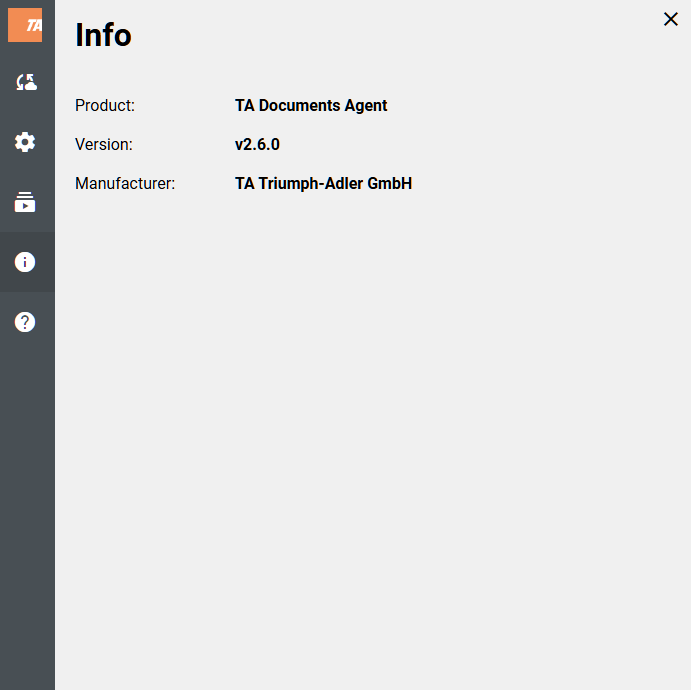
When contacting support, please provide the version of the client you are using.
| Field | Description |
|---|---|
| Product | Name of the product |
| Version | Version of the product |
| Manufacturer | Manufacturer of the product |
Tray Menu
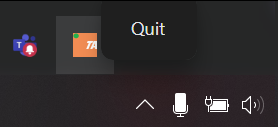
| Navigation entries | Description |
|---|---|
| Quit | Exit program |
Command-Line parameters
| Parameter | Type | Default | Description |
|---|---|---|---|
| --log-debug | bool | false | Activate debug mode |
| --stage | bool | false | If set to true, the staging URL is used. |
| --url | string | "" | If specified, is used as the server URL. |
Logging
The client log file logs.txt is located in the folder %AppData%\TA Documents Agent\logs.
Log Retention
- Once the log file reaches 100 MB, a backup file named
logs-timestamp.logis created. - Backup files older than 28 days are deleted automatically.
- Up to three backup files are retained.
Status Codes
| Code | Description |
|---|---|
| 200 | OK |
| 400 | Bad request |
| 401 | Unauthorized |
| 500 | Internal server error |
Changelog
| Version | Date | Description |
|---|---|---|
| v2.7.0 | 29.12.2025 | Feat
|
| v2.6.0 | 14.11.2025 | Feat
|
| v2.5.0 | 19.09.2025 | Feat
|
| v2.4.0 | 22.05.2025 | Feat
|
| v2.3.0 | 01.04.2025 | Feat
|
| v2.2.0 | 13.03.2025 | Feat
|
| v2.1.0 | 05.02.2025 | Feat
|
| v2.0.1 | 03.12.2024 | Fix
|
| v2.0.0 | 30.09.2024 | Feat
|